
How to Remove "Private Number" on iPhone: The Ultimate Guide for 2026
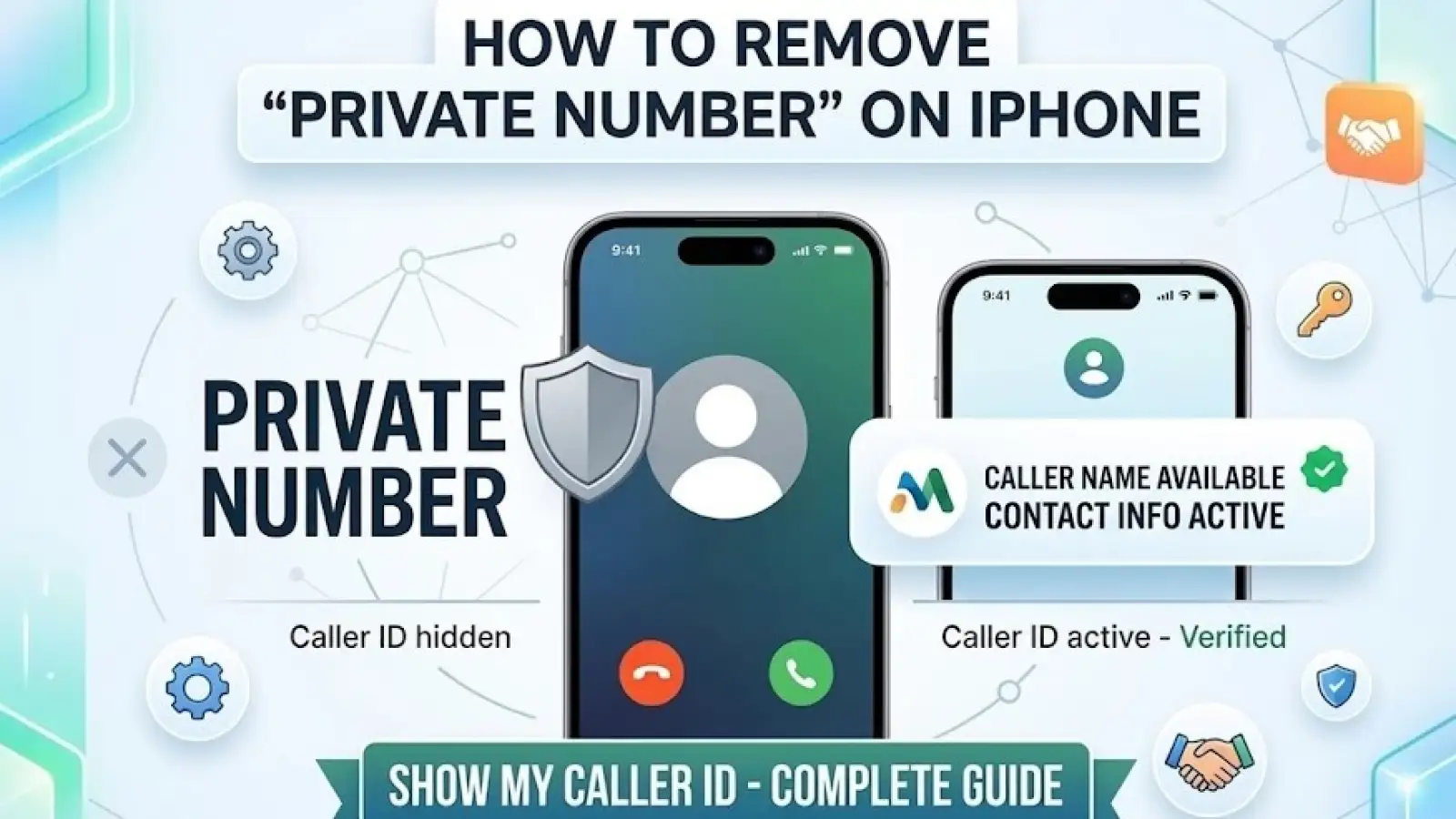
Have you ever called a friend only for them to tell you your call showed up as "Private Number" or "No Caller ID"? Or perhaps you're tired of being bombarded by anonymous calls and want to know how to stop them.
In the fast-paced world of 2026, where the iPhone 17 and iOS 26 have introduced advanced privacy and screening features, managing your caller identity is more important than ever. Showing your caller ID builds trust, especially in a professional market like Nigeria where "Unknown" calls are often associated with spam or scams.
In this guide, we will show you exactly how to remove the "Private Number" tag from your outgoing calls and how to manage incoming anonymous calls using the latest iPhone settings.
How to Stop Your Calls from Showing as "Private"
If your number is appearing as private to others, it means your Caller ID is being suppressed at the network or software level. Here is how to fix it on the latest iOS versions.
1. The Official iOS 26 Method
In the latest updates, Apple has moved many system app settings. Follow these steps to re-enable your Caller ID:
-
Open the Settings app.
-
Scroll down and tap on the Apps section (this is the new home for app-specific settings).
-
Find and tap on Phone.
-
Tap on Show My Caller ID.
-
Toggle the switch ON (so it turns green).
Pro Tip for Dual SIM Users: If you are using a physical SIM and an eSIM (common for combining a work line and a personal line in Nigeria), you must enable this setting for each line individually.
2. What to Do if "Show My Caller ID" is Grayed Out
Sometimes, you might find this toggle is dimmed or won't load. This usually happens for three reasons:
-
Carrier Restrictions: Some Nigerian networks control this at the account level. You may need to contact your provider to "enable caller ID presentation."
-
Network Glitches: Try toggling Airplane Mode on and off for 30 seconds to refresh your connection to the mast.
-
Carrier Settings Update: Go to Settings > General > About. If an update is available, a prompt will appear automatically.
3. Temporary "Private" Codes
If you only want to hide your number for a single call, you don't need to change your settings. Use these prefix codes before dialing the number:
-
#31# (Standard in Nigeria and most GSM networks).
-
*67 (Common for US-spec iPhones).
-
Example: Dial #31#08031234567 to hide your number for that specific call.
How to Manage Incoming "Private" Calls
Receiving calls with "No Caller ID" can be frustrating. While you cannot "force" a private number to reveal itself (due to privacy laws), iOS 26 gives you the tools to filter them out.
1. Using "Ask Reason for Calling" (iOS 26 Feature)
This is the biggest update in recent years. Instead of just silencing the call, your iPhone can now act as a personal assistant:
-
Go to Settings > Apps > Phone.
-
Tap on Screen Unknown Callers.
-
Select Ask Reason for Calling.
How it works: When a private number calls, your iPhone answers with an automated voice asking them to state their name and reason for calling. You will see a live transcript on your screen and can decide whether to pick up or disconnect.
2. Silence Unknown Callers
If you prefer total peace, you can send all private calls straight to voicemail:
-
Go to Settings > Apps > Phone.
-
Select Silence.
-
Private calls will no longer ring; they will appear in your "Recents" list and go to voicemail if the caller leaves a message.
Why Should You Show Your Caller ID?
In a marketplace environment like Marketplace Naija, transparency is key. Here is why you should ensure your "Private Number" setting is removed:
-
Higher Pickup Rates: People are 80% more likely to answer a call from a recognized number.
-
Trust & Credibility: In business, calling from a hidden number can look suspicious or unprofessional.
-
Easier Callbacks: If your client misses your call, they can easily redial your number without hunting for a text message.
FAQs: Removing Private Numbers on iPhone
Q: Does hiding my Caller ID also hide my number in iMessage?
A: No. Caller ID settings only apply to traditional voice calls. Your iMessage and FaceTime identity are managed separately under Settings > Apps > Messages.
Q: Will resetting my network settings help?
A: Yes. If your Caller ID toggle is stuck, go to Settings > General > Transfer or Reset iPhone > Reset > Reset Network Settings. Note: This will delete your saved Wi-Fi passwords.
Q: Can I block all private numbers entirely?
A: Yes. Using the "Silence" or "Screen" options mentioned above effectively blocks the interruption of private calls.
Ready for an Upgrade?
If your current phone is having persistent network issues or you want to experience the advanced Call Screening features of the latest models, it might be time for an upgrade.
Check out the latest deals on verified devices near you:
Stay connected and stay verified with Marketplace Naija!